Saturday, November 23, 2019

SUM (Adds its arguments)


What Does It Do ?
This function creates a total from a list of numbers.
It can be used either horizontally or vertically.
The numbers can be in single cells, ranges are from other functions.
Syntax
=SUM(Range1,Range2,Range3... through to Range30).
Formatting
No special formatting is needed.
Note
Many people use the =SUM() function incorrectly.

This example shows how the SUM has been combined with plus + symbols.
The formula is actually doing more work than needed.
It should have been entered as either =C48+C49+C50 or =SUM(C48:C50).


Friday, November 22, 2019

SUM-Running Total (Using in Sampling)

Using =SUM() For A Running Total


Type the formula =SUM($D$7:D7) in cell E7 and then copy down the table. It works because the first reference uses dollar symbols $ to keep $D$7 static as the formula is copied down. Each occurrence of the =SUM() then adds all the numbers from the first cell down.
The function can be tidied up to show 0 zero when there is no adjacent value by using the =IF() function.


Thursday, November 21, 2019

SUM and the =OFFSET function (Sample)

Sometimes it is necessary to base a calculation on a set of cells in different locations.
An example would be when a total is required from certain months of the year, such as the last 3 months in relation to the current date.
One solution would be to retype the calculation each time new data is entered, but this would be time consuming and open to human error.
A better way is to indicate the start and end point of the range to be calculated by using the =OFFSET() function.
The =OFFSET() picks out a cell a certain number of cells away from another cell. By giving the =OFFSET() the address of the first cell in the range which needs to be totalled, we can then indicate how far away the end cell should be and the =OFFSET()will give us the address of cell which will be the end of the range to be totalled.
The =OFFSET() needs to know three things;
1. A cell address to use as the fixed point from where it should base the offset.
2. How many rows it should look up or down from the starting point.
3. How many columns it should look left or right from the starting point.


Using =OFFSET() Twice In A Formula

The following examples use =OFFSET() to pick both the start and end of the range which needs to be totalled.


Example
The following table shows five months of data.
To calculate the total of a specific group of months the =OFFSET() function has been used.

 The Start and End dates entered in cells F71 and F72 are used as the offset to produce a range which can be totalled.


Explanation
The following formula represent a breakdown of what the =OFFSET function does.
The  formula displayed below are only dummies, but they will update as you enter dates into cells F71 and F72.


Wednesday, November 20, 2019

SUMIF (Adds the cells specified by a given criteria)


What Does It Do?
This function adds the value of items which match criteria set by the user.
Syntax

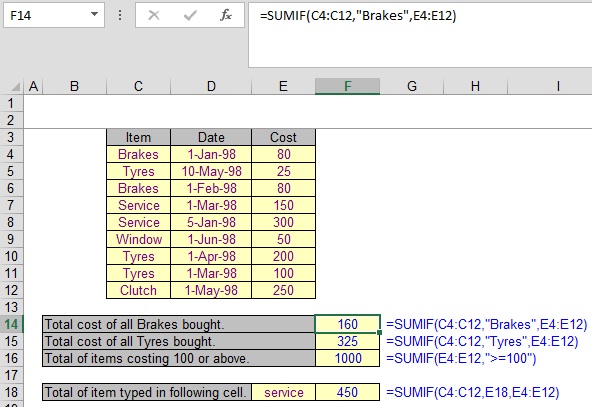
=SUMIF(RangeOfThingsToBeExamined,CriteriaToBeMatched,RangeOfValuesToTotal)

=SUMIF(C4:C12,"Brakes",E4:E12)                      This examines the names of products in C4:C12.
                                                                        It then identifies the entries for Brakes.
                                                                        It then totals the respective figures in E4:E12
=SUMIF(E4:E12,">=100")                                   This examines the values in E4:E12.
                                                                        If the value is >=100 the value is added to the total.
Formatting

No special formatting is required.